English Edition
  • తెలుగు
  • हिन्दी
  • ಕನ್ನಡ
  • മലയാളം
  • தமிழ்
  • বাংলা
  • ગુજરાતી
Diwali
Get Updates
Get notified on trends, wellness, and lifestyle stories just for you!
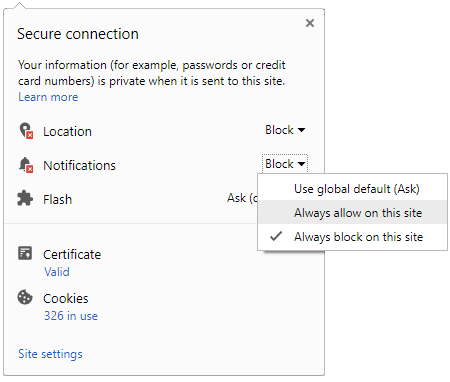
You can manage your notification subscription by clicking on the icon
To start receiving timely alerts, as shown below click on the Green “lock” icon next to the address bar
Click it and Unblock the Notifications
Close X
Close X
To Start receiving timely alerts please follow the below steps:
  • Click on the Menu icon of the browser, it opens up a list of options.
  • Click on the “Options ”, it opens up the settings page,
  • Here click on the “Privacy & Security” options listed on the left hand side of the page.
  • Scroll down the page to the “Permission” section .
  • Here click on the “Settings” tab of the Notification option.
  • A pop up will open with all listed sites, select the option “ALLOW“, for the respective site under the status head to allow the notification.
  • Once the changes is done, click on the “Save Changes” option to save the changes.
Notifications
Clear All
    No Notifications
    Boldsky
    A Oneindia Venture
    • Home
    • Winning Over Diabetes
    • Insync
    • Astro Services
    • Fashion
    • Health
    • Recipe
    • Yoga Spirituality
    • Home n Garden
    • Astrology
    • Pregnancy n Parenting
    • Brand Buzz
    Home Insync
    INSYNC
    • Angelina & Brad Stun In Black At Maleficent
      Angelina & Brad Stun In Black At Maleficent
    • 9 Weird Things To Do With Friends
      9 Weird Things To Do With Friends
    • Miley Cyrus Storms London In Crazy Colours
      Miley Cyrus Storms London In Crazy Colours
    • 9 Weird Bar Food From Across The World
      9 Weird Bar Food From Across The World
    • 10 Stupid Things Indian Guys Do
      10 Stupid Things Indian Guys Do
    • Kate Middleton's Favourite Fashion Designers
      Kate Middleton's Favourite Fashion Designers
    • Deepika Padukone Sparkles In Archana Rao
      Deepika Padukone Sparkles In Archana Rao
    • 10 Famous Bangalore Street Food Students Can Afford
      10 Famous Bangalore Street Food Students Can Afford
    • Sonam Looking Hot In Black Dress For Samsung Event
      Sonam Looking Hot In Black Dress For Samsung Event
    • 11 Celebrities Turned Fashion Designers
      11 Celebrities Turned Fashion Designers
    • 10 Reasons Why We Love Taylor Swift
      10 Reasons Why We Love Taylor Swift
    • Bipasha In Manish Malhotra & Sonaakshi Raaj
      Bipasha In Manish Malhotra & Sonaakshi Raaj
    • Legends Of The Popular Cocktails
      Legends Of The Popular Cocktails
     
    Boldsky
    Boldsky in Other Languages
    • हिन्दी
    • ಕನ್ನಡ
    • മലയാളം
    • தமிழ்
    • తెలుగు
    • বাংলা
    • ગુજરાતી
    Explore Boldsky
    • Health
    • Recipes
    • Insync
    • Fashion
    • Home-n-Garden
    • Yoga-Spirituality
    • Pregnancy-Parenting
    Other Greynium Sites
    • Filmibeat
    • Drivespark
    • Gizbot
    • Goodreturns
    • Native Planet
    • Careerindia
    • Clickin
    Follow Boldsky
    twitter
    Get Oneindia Alerts
    Get Push Notifications
    About Us | Terms of Service | Privacy Policy | RSS | Contact Us | Feedback | Sitemap | Cookie Policy | Code of Business Conduct | Grievance | Corrections Policy
    © Greynium Information Technologies Pvt. Ltd. All Rights Reserved.
    Notifications
    Settings
    Clear Notifications
      No New Notifications
      Notifications
      Use the toggle to switch on notifications
      • Block for 8 hours
      • Block for 12 hours
      • Block for 24 hours
      • Don't block
      To start receiving timely alerts, as shown below click on the Green “lock” icon next to the address bar
      Click it and Unblock the Notifications
      Close X
      Close X
      To Start receiving timely alerts please follow the below steps:
      • Click on the Menu icon of the browser, it opens up a list of options.
      • Click on the “Options ”, it opens up the settings page,
      • Here click on the “Privacy & Security” options listed on the left hand side of the page.
      • Scroll down the page to the “Permission” section .
      • Here click on the “Settings” tab of the Notification option.
      • A pop up will open with all listed sites, select the option “ALLOW“, for the respective site under the status head to allow the notification.
      • Once the changes is done, click on the “Save Changes” option to save the changes.
      Log in for Better Reading Experience!
      • Sign in with Google Continue with Google
      By signing in, you agree to our Terms and Privacy Policy
      Gender
      Select your Gender
      • Male
      • Female
      • Others
      Age
      Select your Age Range
      • Under 18
      • 18 to 25
      • 26 to 35
      • 36 to 45
      • 45 to 55
      • 55+
      Sign Out
      Advertisement